
Y's Seniors
DIGITAL SAFETY RESOURCES
YWCA Muskoka offers Let's Get Digital for Seniors -
Creating Strong Passwords
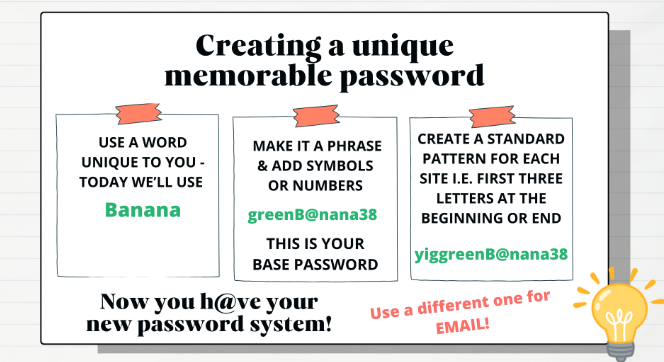
- Create an anchor password. You can use this method for every password except for your email. Because you use your email address to sign up for most of your other accounts, it’s the one that is the most important to keep private. You can use the same method to come up with a password, but make sure it’s a totally different one from all your other accounts.
- You still only need to remember two passwords – the one that you use for your email address, and the other one that you change slightly for each of your other accounts.
- Don’t write them in a book or piece of paper;
- What if someone breaks in? Not only do they have your physical items but they have access to all your digital resources
- Give the passwords to a VERY trusted family member or leave the info in your will or safe
- Use a password manager - i.e. lastpass.com, bitwarden, etc... This is a program that you use to handle your passwords for different accounts. It creates a different, almost unbreakable password for each account and then handles logging in to them for you. Password managers can be useful, but they only solve the problem of having different passwords for different accounts. You still need to make sure you have a strong password for the password manager, because anyone who can log into it can log into all of your accounts.
- Unless you can secure it with a password - don’t save passwords onto your browser - especially if you live somewhere where others might have access to your device.
Spotting Scams
Scams can come to you in different ways.
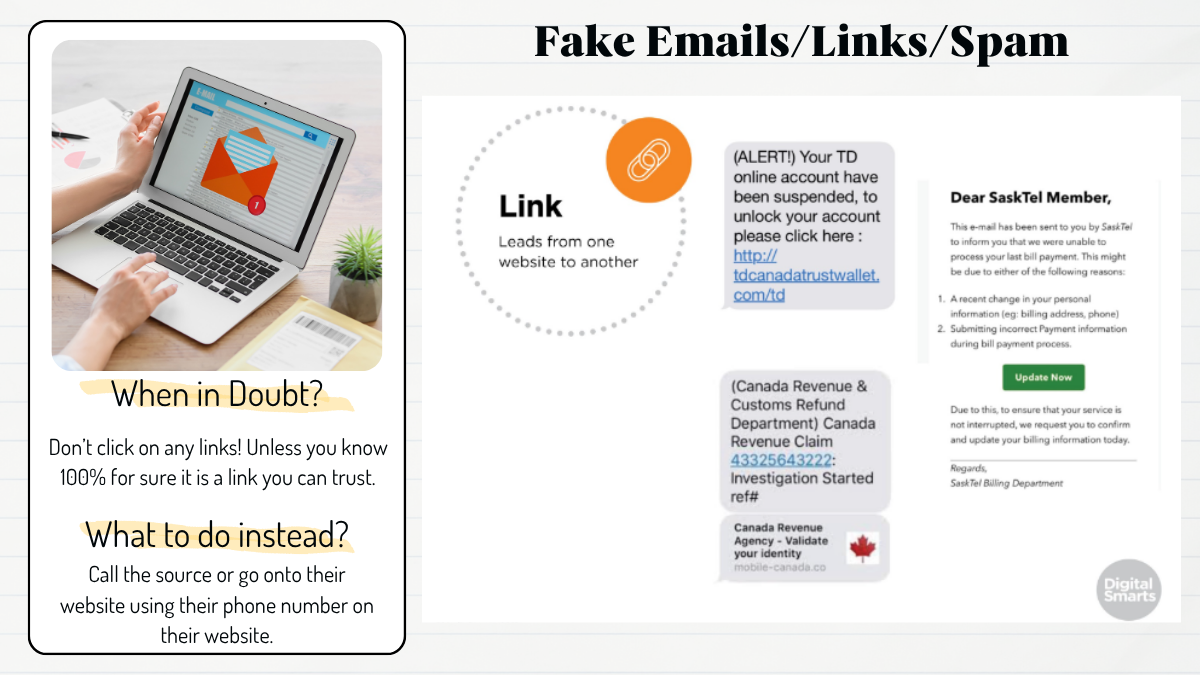
Be cautious of emails, text messages, and social media messages, even if they appear to come from someone you know, your bank, or a trusted organization. Scammers may ask for money urgently, personal information, or encourage you to click a link. They may also promise tax refunds, lottery winnings, or business opportunities that seem too good to be true. Never click links in unexpected messages or provide personal information. Instead, visit the organization’s official website yourself or call a verified phone number to check if the message is legitimate. If a message claims someone you know is in trouble, contact them another way to confirm. When in doubt, delete the message, and use antivirus software to scan your computer regularly.
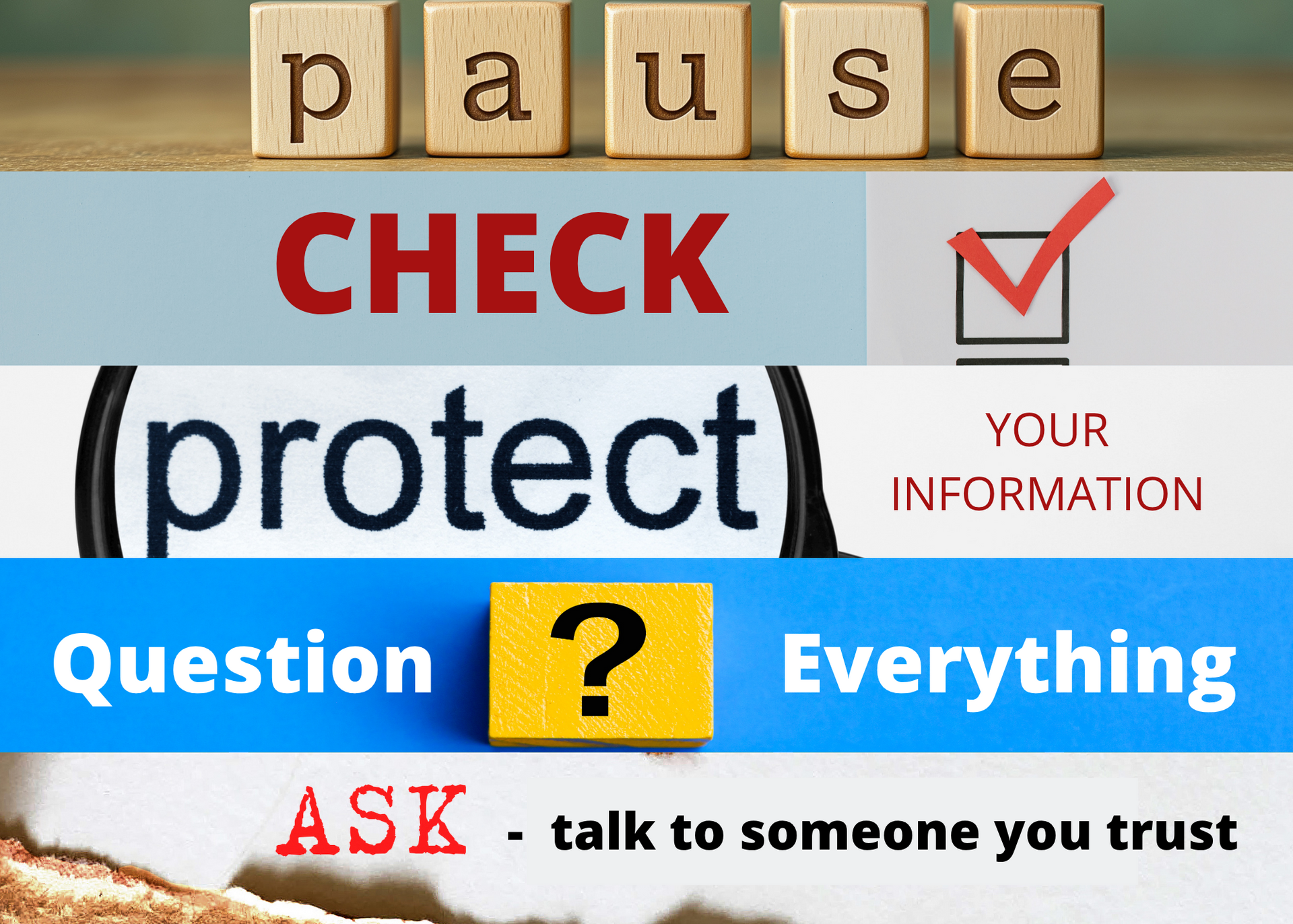
1. PAUSE. Don’t let urgency, fear, excitement, or pressure rush you into a decision.
2. CHECK. Verify unexpected requests for money or personal information through a trusted, independent channel.
3. PROTECT. Use strong, unique passwords and turn on multifactor authentication where available. Never share one-time security codes with unexpected callers.
4. QUESTION. AI can create convincing text, images, voices, and videos. Don’t assume something is genuine because it looks or sounds real.
5.
ASK. If you’re uncertain, talk to someone you trust before clicking, sharing information, or sending money.
Never share:
- Your full name (including middle names)
- Your full date of birth (including the year)
- Your Social Insurance Number
- Your mother’s maiden name (a lot of people use that as a security question)
- Your credit card information
- And your driver’s license or passport number
Additional Resources
Canadian Centre for Cyber Security
The single unified source of expert advice, guidance, services and support on cyber security for Canadians.